General
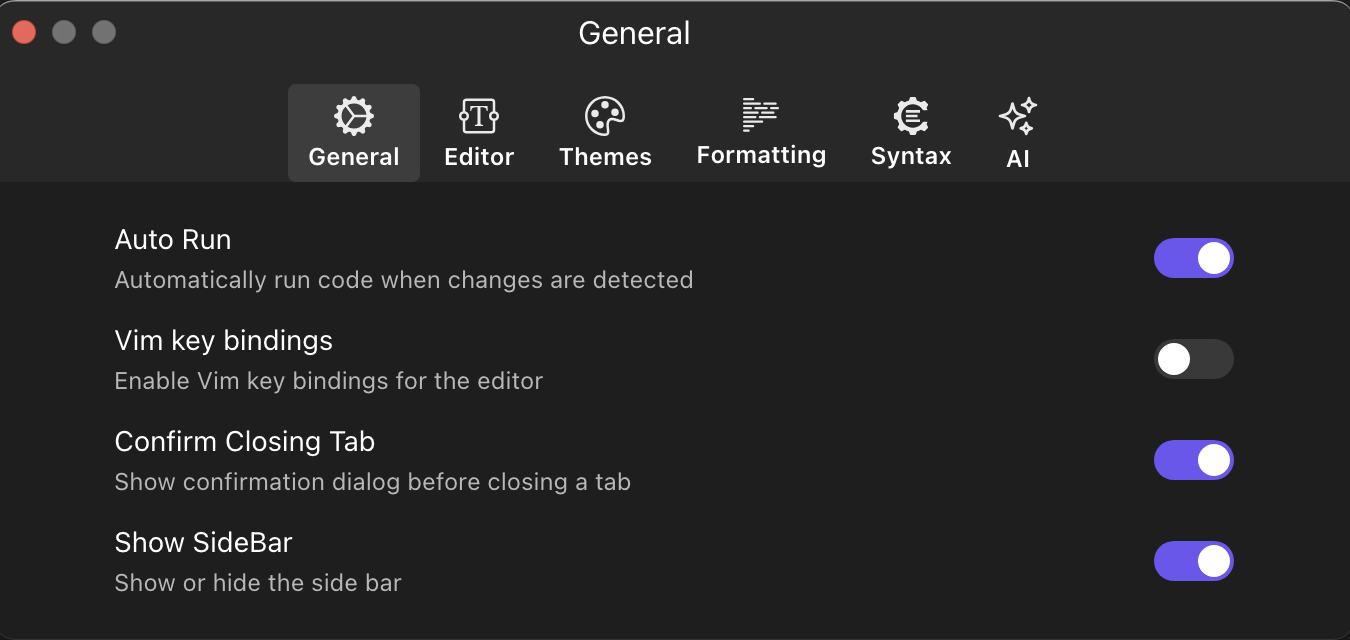
The General preferences panel contains fundamental settings that control the overall behavior of PlayJS. Access it via Preferences → General.
Auto Run
When enabled, PlayJS automatically executes your code every time a change is detected in the editor. This creates a live-coding experience where you can see results instantly as you type, without manually pressing the run button.
Disable this option if you prefer to run code on demand — for example, when working with long-running scripts, network requests, or code that produces side effects you want to control.
Vim Key Bindings
Enables Vim-style modal editing in the code editor. When active, the editor supports Vim motions (h, j, k, l), modes (Normal, Insert, Visual), and common Vim commands such as dd, yy, p, ciw, and more.
This is ideal for developers who are accustomed to Vim workflows and want to maintain their muscle memory while using PlayJS. When disabled, the editor uses standard keyboard shortcuts.
Confirm Closing Tab
When enabled, PlayJS displays a confirmation dialog before closing a tab. This prevents accidental loss of unsaved work by requiring you to explicitly confirm the action.
If you prefer a faster workflow and are comfortable relying on undo history, you can disable this option to close tabs immediately without prompts.
Show SideBar
Controls the visibility of the application sidebar. The sidebar provides quick access to features like NPM package management, environment variables, and AI chat.
Hide the sidebar to maximize your editor and output space when you don’t need these tools. You can toggle it back at any time through this preference.
