Formatting
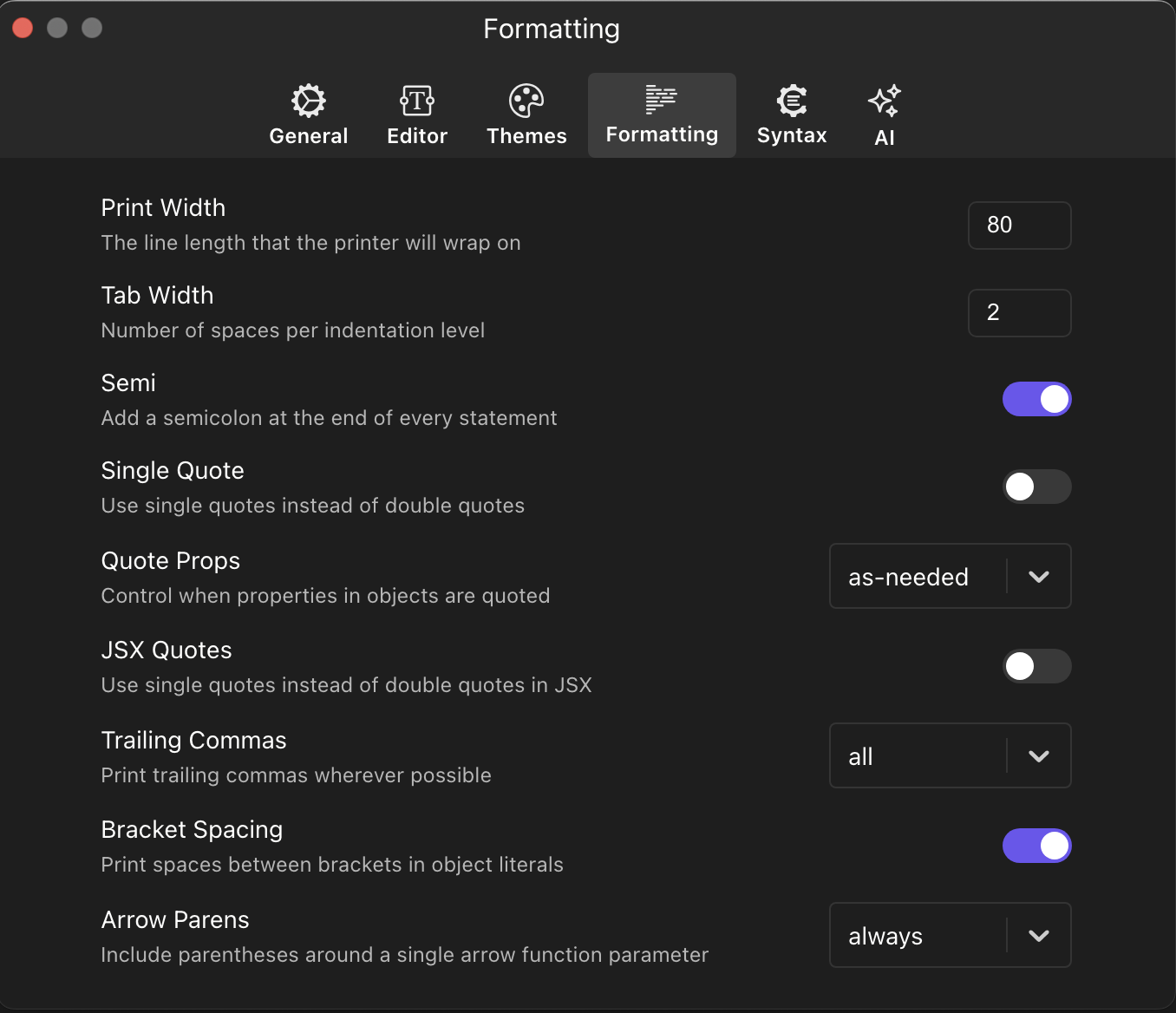
PlayJS uses Prettier under the hood for code formatting. Press ⌥⇧F (macOS) / Alt+Shift+F (Windows/Linux) to format your code. The Formatting preferences panel lets you customize how Prettier transforms your code. Access it via Preferences → Formatting.
Print Width
Sets the maximum line length that the formatter will wrap on. The default value is 80. When a line of code exceeds this width, Prettier will attempt to break it into multiple lines at logical points. A higher value allows longer lines before wrapping, which can be useful on wide monitors. A lower value enforces shorter lines, improving readability in side-by-side editor layouts or code reviews.
Tab Width
Defines the number of spaces per indentation level. The default is 2. This controls how deeply nested code is visually indented. Common choices are 2 (popular in JavaScript/TypeScript communities) and 4 (common in other languages). Choose the value that aligns with your team’s style guide or personal preference.
Semi
Controls whether semicolons are automatically added at the end of every statement. When enabled (the default), Prettier ensures every statement ends with a semicolon. When disabled, Prettier removes unnecessary semicolons, relying on JavaScript’s Automatic Semicolon Insertion (ASI). Some developers prefer the cleaner look of no semicolons, while others value the explicitness and safety of always including them.
Single Quote
When enabled, Prettier uses single quotes (') instead of double quotes (") for string literals. This does not apply to JSX, which has its own setting. The choice between single and double quotes is largely a matter of style — single quotes are more common in the JavaScript ecosystem, while double quotes are standard in JSON and some other contexts.
Quote Props
Controls when object properties are quoted. Available options include:
- as-needed (default): Only add quotes around properties that require them (e.g., properties with special characters or reserved words).
- consistent: If at least one property in an object requires quotes, quote all properties.
- preserve: Respect the original quoting style in the input code.
JSX Quotes
When enabled, Prettier uses single quotes instead of double quotes in JSX attributes. By default this is off, meaning JSX attributes use double quotes (e.g., <div className="app">). Enable it if your project convention prefers single quotes in JSX (e.g., <div className='app'>).
Trailing Commas
Controls where trailing commas are printed. Available options include:
- all (default): Add trailing commas wherever possible, including function parameters and arguments. This produces cleaner diffs in version control since adding a new item doesn’t modify the previous line.
- es5: Add trailing commas where valid in ES5 (objects, arrays, etc.), but not in function parameters.
- none: No trailing commas anywhere.
Bracket Spacing
Controls whether spaces are printed between brackets in object literals. When enabled (the default), objects are formatted as { foo: bar } with spaces inside the braces. When disabled, they are formatted as {foo: bar} without spaces. Most style guides prefer bracket spacing for readability.
Arrow Parens
Controls whether parentheses are included around a single arrow function parameter. Available options include:
- always (default): Always include parentheses, e.g.,
(x) => x * 2. This is consistent with multi-parameter functions and makes it easier to add or remove parameters later. - avoid: Omit parentheses when there is a single parameter, e.g.,
x => x * 2. This produces slightly shorter code.
