Editor
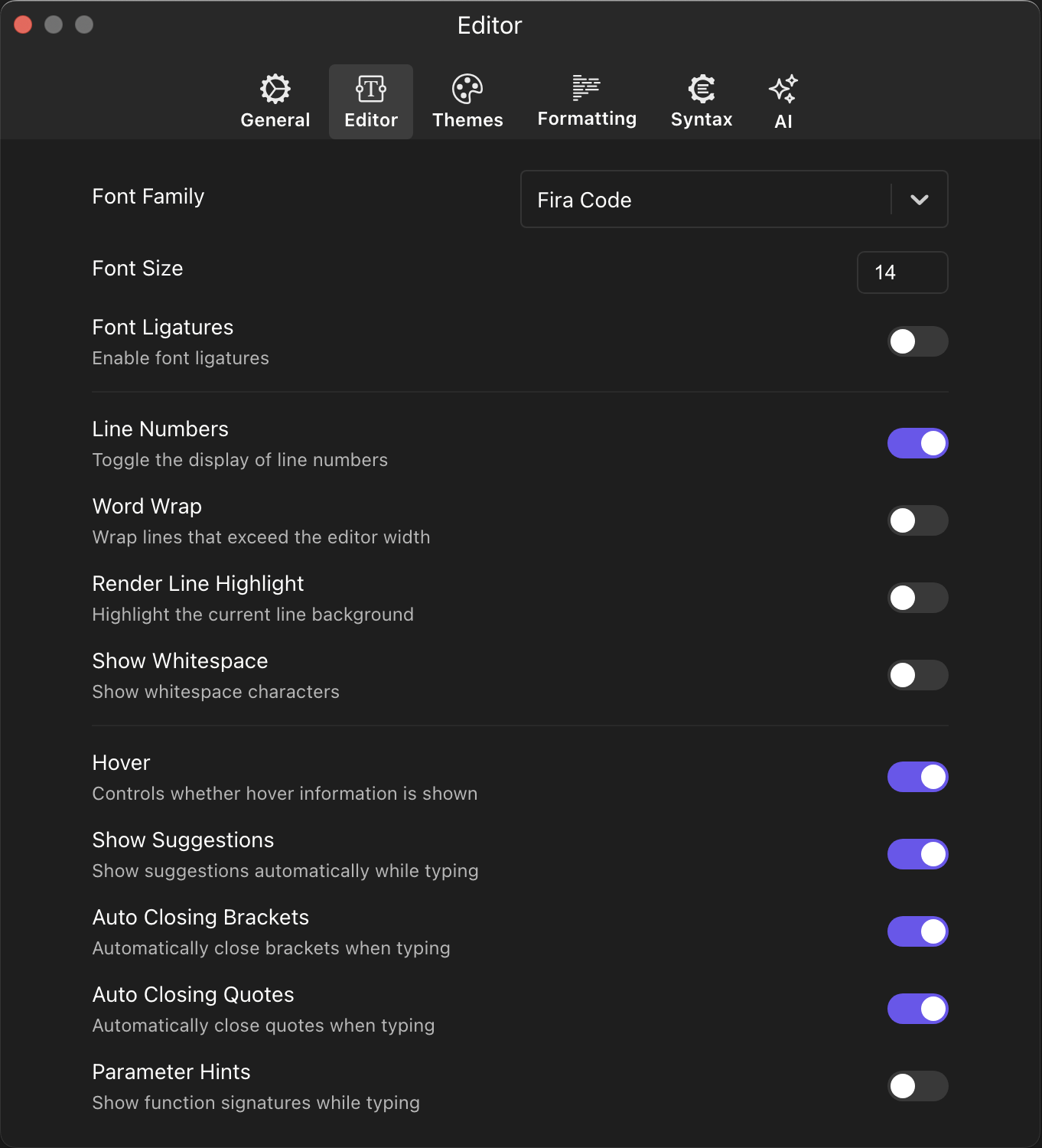
The Editor preferences panel lets you fine-tune the code editing experience in PlayJS. These settings control everything from typography to intelligent code assistance. Access it via Preferences → Editor.
Font Family
Select the monospace font used in the code editor. PlayJS ships with several popular programming fonts including Fira Code, JetBrains Mono, and others. The right font can improve readability and reduce eye strain during long coding sessions. Choose one that matches your personal preference or pairs well with your selected theme.
Font Size
Adjust the font size of the code editor. Accepts values typically ranging from small (e.g., 10) to large sizes, letting you find the perfect balance between code density and readability. A larger font size is helpful on high-resolution displays or for presentations, while a smaller size lets you see more code at once.
Font Ligatures
Enables programming ligatures in supported fonts (such as Fira Code). Ligatures combine multi-character sequences like =>, !==, and >= into single, visually distinct glyphs. This can make code easier to scan at a glance. If you prefer to see each character individually, keep this option disabled.
Line Numbers
Toggles the display of line numbers in the editor gutter. Line numbers are essential for navigating code, referencing specific lines during debugging, and communicating about code with others. Disable them if you prefer a cleaner, distraction-free editing view.
Word Wrap
When enabled, lines that exceed the editor width automatically wrap to the next visual line instead of requiring horizontal scrolling. This is useful when working with long strings, comments, or prose-heavy code. When disabled, long lines extend beyond the visible area and can be reached by scrolling horizontally.
Render Line Highlight
Highlights the background of the line where your cursor is currently positioned. This visual cue helps you quickly locate your cursor in the editor, especially in large files. Disable it if you find the highlight distracting.
Show Whitespace
Renders whitespace characters (spaces and tabs) as visible dots or arrows in the editor. This is helpful for identifying indentation issues, trailing spaces, or mixed tabs and spaces. Keep it off for a cleaner visual appearance when whitespace precision is not a concern.
Hover
Controls whether hover information is displayed when you move your mouse over code elements. When enabled, hovering over a variable, function, or type shows its type signature, documentation, or inferred value. This provides quick inline reference without leaving the editor. Disable it if you find hover popups intrusive.
Show Suggestions
Enables automatic code suggestions (IntelliSense) that appear as you type. The editor analyzes your code context and offers completions for variable names, function signatures, object properties, and more. This significantly speeds up coding and helps discover available APIs. Turn it off if you prefer to type without interruption.
Auto Closing Brackets
Automatically inserts a matching closing bracket when you type an opening one — including (), [], and {}. This reduces keystrokes and helps prevent mismatched brackets. Disable it if you prefer full manual control over bracket pairs.
Auto Closing Quotes
Automatically inserts a matching closing quote when you type an opening single or double quote. Like auto-closing brackets, this saves keystrokes and ensures quotes are always properly paired. Disable it if automatic insertion interferes with your typing flow.
Parameter Hints
Displays function signature information as you type arguments inside a function call. The hint shows parameter names, types, and their positions, helping you pass the correct arguments in the right order. This is especially useful when working with unfamiliar APIs. Disable it if you find the overlay distracting while typing.
